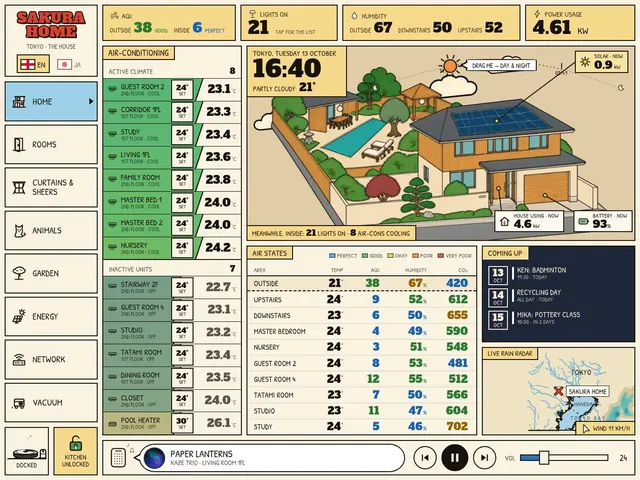
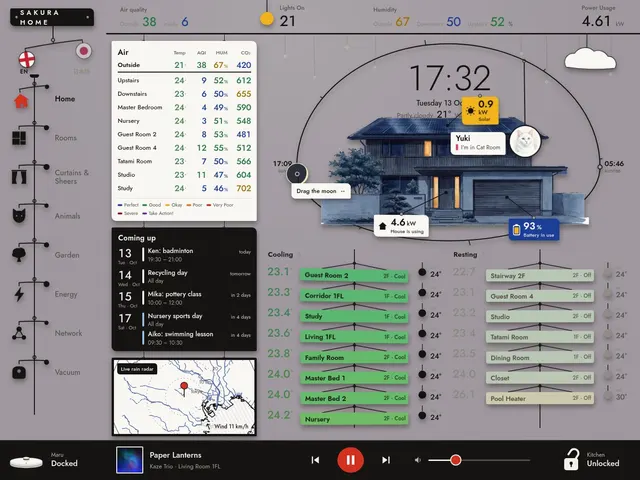
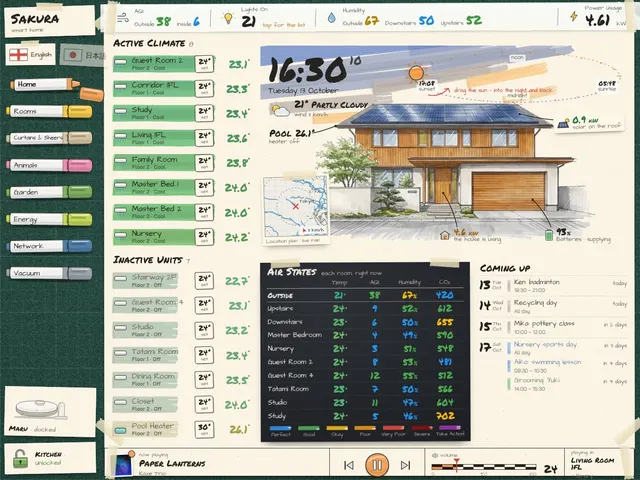
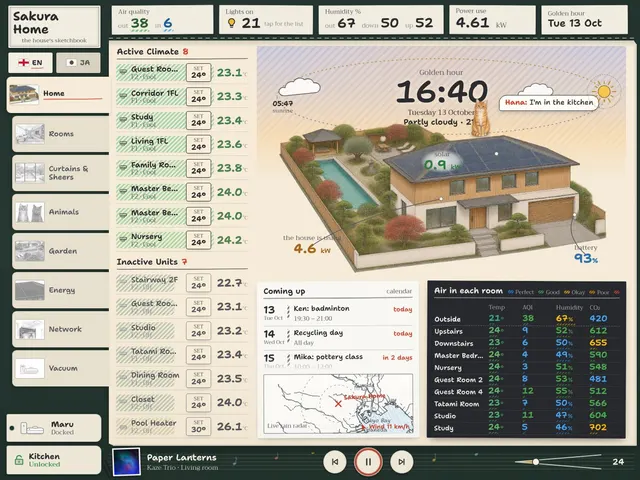
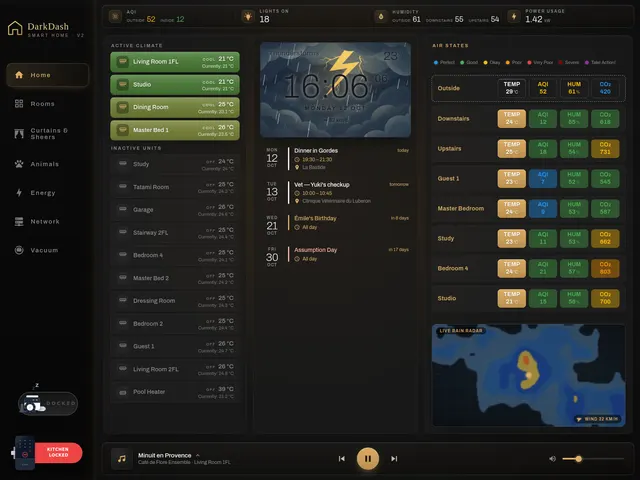
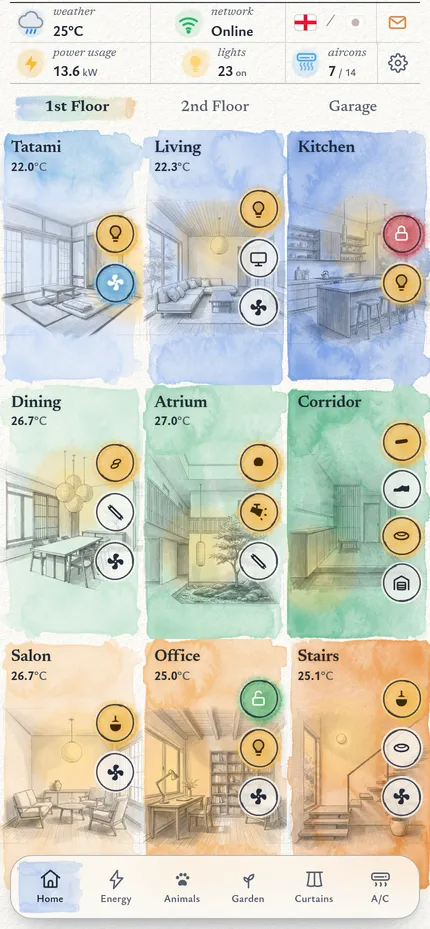
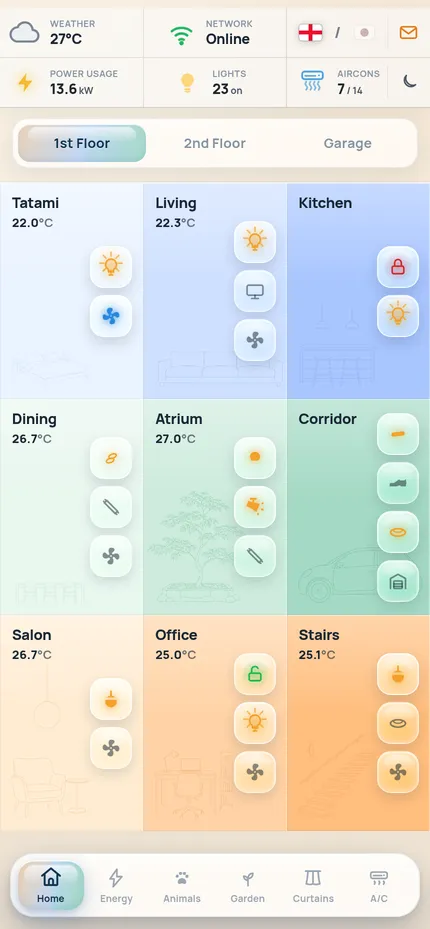
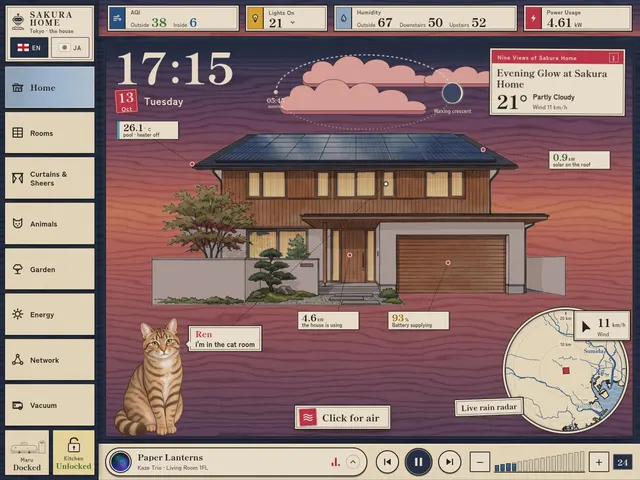
Eight Home Assistant dashboards to tap around: six for a wall tablet, two for a phone.External web app dashboards intended for use with the Home Assistant architecture, utilising Home Assistant’s WebSocket API.External web app dashboards intended for use with the Home Assistant architecture, utilising Home Assistant’s WebSocket API.

Tablet dashboards
Phone dashboards

dashboards.casa

What on earth is this?

A gallery of external smart-home screens for Home Assistant. Have a play: nothing here is real, and you can’t break anything.

Questions people ask

What is an external smart-home screen?

A dashboard that is its own little web app, separate from Home Assistant’s built-in dashboards. It talks to Home Assistant live over its WebSocket API, so it can look like anything at all.

To use one at home you’ll want:

  • another machine that stays on all day to run it, such as a mini PC, a NAS or a Raspberry Pi (Home Assistant itself can also serve the files);
  • a screen to show it on: a tablet on the wall, or your phone;
  • for the most benefit, a coding agent such as Claude Code, plus a Home Assistant MCP server. Then you can update the dashboard or solve problems just by asking in plain English, without knowing how to code.
What is Home Assistant?

Free, open-source software that runs your smart home. It links lights, sensors, heating and gadgets from lots of different brands, and it runs on a small computer in your house.

Do I need anything to try these?

No. They run right here in your browser, on a made-up house. Nothing to install and no sign-up.

Is this a real house?

No. The house, the rooms, the people, the pets and every number are made up for the demos.

Why tablet and phone?

Tablet dashboards are made for a tablet on the wall that stays on all day. Phone dashboards are made for your pocket.

Can I put one on my own Home Assistant?

Yes. Open a dashboard, press “Code and instructions handoff”, download the zip and give it to a coding agent. It runs the demo first, connects your devices, helps you make pictures of your own home, then goes live.

What are Claude Code and Codex?

Coding agents: AI helpers that work on your computer. You say what you want in plain English, and they read the files, write and fix the code, run the commands and explain what they did.

Claude Code is made by Anthropic; Codex is made by OpenAI. Either can follow a handoff from this site. Both need an account with their maker, usually a paid plan.

What is an MCP server?

MCP (Model Context Protocol) is an open standard that lets an AI agent plug into other software. Home Assistant has an MCP server: an official integration, plus community versions.

Connect your coding agent to it and the agent can look up your rooms, devices and what they are doing right now, and, if you allow it, control them. So when you say “the kitchen light card is wrong”, it checks your real setup instead of guessing.

Do I need to know how to code?

Not really. The handoff is written for the coding agent, which does the technical bits. You’ll need access to your Home Assistant and a little patience.

Does it cost anything?

The code is free to use (MIT licence). Pictures of your own home can be free too: each guide lists free tools. A coding agent usually needs a paid plan.

What are the risks?

Downloading a handoff: it is code that you run on your own computer, and installing it also downloads open-source packages from the internet, as every web project does. Each zip is checked so that it holds no private data or passwords, but it comes as-is, with no warranty. Read it (or have your agent read it) before you run it, and only download it from dashboards.casa.

Using a coding agent on your own home: an agent that can reach Home Assistant can change real things. It can switch devices, unlock doors and edit automations, and it can misunderstand you or make mistakes. So:

  • back up Home Assistant before big changes;
  • give the agent its own Home Assistant user and start it read-only;
  • check each action before you approve it, especially locks, alarms, heating and anything with a motor;
  • keep tokens and passwords out of chats and shared files, and revoke them when you’re done;
  • never let it open your Home Assistant up to the internet.
Where does my data go?

Once installed, a dashboard talks straight to your own Home Assistant over its WebSocket API. Nothing is sent to dashboards.casa. Some designs also load a public rain-radar map or web fonts.